Protecting sensitive information is crucial for practically all industries, which is why so many companies utilize Secure File Transfer Protocol (SFTP) when sending and receiving files. This is a step up from standard FTP, which only sends data as plain text.
SFTP encrypts authentication credentials and file data while they are transmitted over an SSH connection. However, these connections must be functional to provide secure transfers. This is why businesses should know how to test their SFTP connections, or else they may be left vulnerable and without a means to transmit or receive files securely and reliably.
Start with the Basics
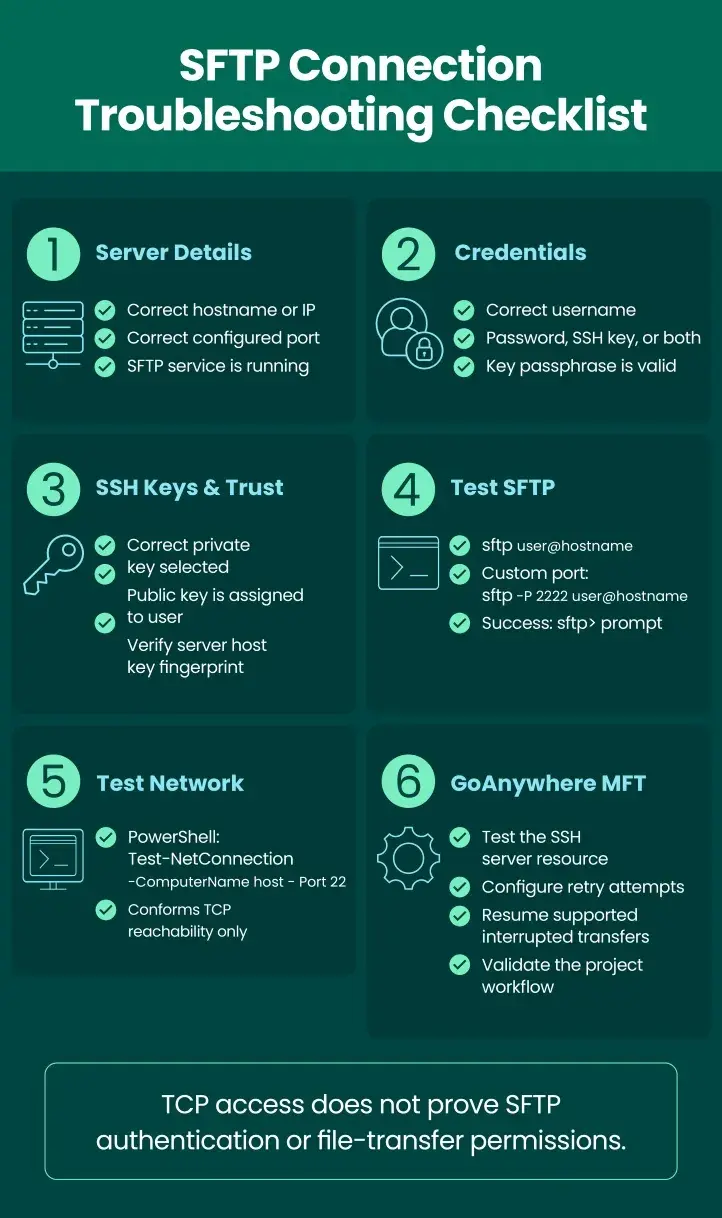
Before attempting more advanced means of testing an SFTP connection, users should start by making sure they aren’t missing anything basic. First and foremost, make sure the IP address or hostname and port number are identical to those supplied by the SFTP service provider. In most cases, SFTP connections use port 22 unless specifically configured to use another.
Once it’s established that the IP address or hostname and port are correct, ensure the correct authentication credentials are being used, such as the username and password or SSH private key.
GoAnywhere supports password authentication, SSH private key authentication, or both. It also recommends verifying the host key fingerprint.
Test the SFTP Resource in GoAnywhere MFT
GoAnywhere MFT allows administrators to configure an SFTP Resource using connection details such as the hostname, port, username, and authentication method. Once the Resource is configured, use the Test option to verify that GoAnywhere can connect using the supplied settings.
If additional troubleshooting is needed, command-line tools can help isolate connectivity or configuration issues.
Use Terminal Commands for Additional Troubleshooting
If the user has access to a terminal command window, they can test thean SFTP site connection directly with the command sftp user@hostname, replacing “user” and “hostname” with the appropriate username and SFTP server address.
If the SFTP server uses a port other than the default port 22, specify the alternate port with the -P option. For example, sftp -P 2222 user@hostname tests an SFTP connection on port 2222.
The SFTP client will then attempt to authenticate using the configured method, such as a password or SSH key. A successful SFTP session confirms that the server is accepting SFTP connections rather than only testing general SSH access.
Using Windows to Test SFTP Connectivity
Windows PowerShell can help verify whether the SFTP server’s configured port is reachable. For example, the command Test-NetConnection sftp.example.com -Port 22 tests TCP connectivity to port 22. Replace the server name and port with those configured for the SFTP service.
Keep in mind that this test confirms network connectivity only. It does not validate SFTP authentication, SSH host key verification, SFTP subsystem availability, or file transfer functionality.
If the connection fails, verify outbound firewall rules and any intermediate network security controls for the port configured for the SFTP service. Network access should be limited to the systems and ports required for the connection.
Improve SFTP Transfer Reliability with GoAnywhere MFT
Fortra’s GoAnywhere MFT provides centralized SFTP connection management, workflow automation, SSH key management, and operational visibility.
For SFTP transfers, administrators can configure connection retry attempts and the interval between retries. If a connection is interrupted, GoAnywhere can reestablish it and resume a supported SFTP transfer from where it stopped. GoAnywhere also provides capabilities designed to support transfer integrity and reliable file delivery.
These features improve reliability, but they do not replace proper testing. Administrators should validate resource connectivity, authentication, host key fingerprints, permissions, remote paths, and complete Project workflows before deploying changes to production.
To learn how GoAnywhere MFT can help your organization automate and secure SFTP transfers, contact our team or start a free trial today.