Securing data in transit is one of the most important responsibilities for any organization that transfers sensitive information online. Whether you’re protecting customer logins, payment information, API communications, or managed file transfers, knowing how to set up Secure Sockets Layer (SSL) correctly
helps ensure that data remains confidential and authentic throughout every connection.
Although the term SSL is still widely used, most modern secure connections actually rely on Transport Layer Security (TLS). TLS replaced older SSL protocols years ago because it provides stronger encryption, better authentication, and improved protection against modern cyber threats. Even so, the phrase SSL certificate remains the industry standard when referring to digital certificates used to secure HTTPS websites, APIs, and file transfer platforms.
This guide walks through the complete SSL setup process, from planning and creating a Certificate Signing Request (CSR) to installing certificates in GoAnywhere MFT, configuring TLS settings, and testing the installation.
Overview: Why SSL Certificates Matter
An SSL certificate is a digital certificate that verifies the identity of a server while encrypting communications between systems. During a TLS handshake, the certificate proves that users are connecting to the intended server rather than an attacker impersonating it.
Organizations across nearly every industry use SSL, including healthcare, financial services, retail, manufacturing, education, government, and technology. Any organization that transfers sensitive information over the internet or private networks should implement properly configured SSL certificates.
Checklist Before Obtaining SSL Certificates
Before requesting a certificate, gather the information needed for a smooth deployment. Start by identifying every domain name, Fully Qualified Domain Name (FQDN), subdomain, or hostname that requires encryption. For larger deployments, this may include APIs, application servers, file transfer gateways, and administrative interfaces. Depending on the deployment, a wildcard certificate may also be an option for securing multiple subdomains under the same domain—for example, *.example.com. Keep in mind that wildcard certificates typically cover only one level of a subdomain.
Choose an SSL Certificate Type and Provider
Domain Validation (DV)
These certificates verify domain ownership. They are quick to issue and commonly used for websites, APIs, development environments, and automated deployments.
Organization Validation (OV)
These certificates include additional verification of the organization requesting the certificate. These are frequently used by businesses that want stronger identity validation.
Extended Validation (EV)
These certificates require the highest level of organizational verification. While browser indicators have changed over time, EV certificates remain common in industries requiring maximum trust.
Public Certificate Authorities vs Internal PKI
Public Certificate Authorities such as DigiCert or Let’s Encrypt issue certificates trusted by web browsers and external systems. Organizations may also use an internal Public Key Infrastructure (PKI) for internal applications, development environments, or private file transfer systems.
Generate a Certificate Signing Request
A CSR is required before obtaining an SSL certificate from a trusted Certificate Authority. The CSR contains a public key, a domain name, organization information, country, state, and locality. The private key generated alongside the CSR should never leave the server where it was created.
Create CSR Using OpenSSL
OpenSSL remains one of the most common tools for generating SSL certificates.
Begin by generating a new private key: openssl genrsa -out private.key 2048.
Then create the CSR: openssl req -new -key private.key -out request.csr.
During the prompts, enter the correct Common Name (CN), which should match the server’s Fully Qualified Domain Name (FQDN), such as: mft.company.com
If multiple hostnames will be secured, use Subject Alternative Names (SANs) according to your Certificate Authority’s requirements.
Create CSR Using Windows
Windows Server administrators can generate a CSR directly from the IIS Manager.
- Open the IIS Manager.
- Select Server Certificates.
- Choose Create Certificate Request.
- Enter your organization details.
- Specify the correct common name.
- Choose the desired cryptographic provider.
- Save the CSR file.
Create CSR Inside GoAnywhere MFT
GoAnywhere MFT includes built-in certificate management tools that simplify certificate creation.
- Open the GoAnywhere administrator console.
- Navigate to Certificate Manager.
- Select Add Certificate
- Enter the Common Name and organization information.
- Select the Algorithm, Key Size, and Signature Algorithm.
- Define the Extended Key Usage attributes and Subject Alternative Names
- Save
- Click the gear next to the newly created certificate key pair and select Generate CSR.
Obtain and Install an SSL Certificate
Once the Certificate Authority validates the request, it returns the server certificate, intermediate certificate, and certificate chain bundle as part of the CA Reply. Within GoAnywhere MFT
- Upload the server certificate.
- Import the intermediate certificates.
- Select the gear for the key pair and choose Import CA Reply.
- Verify the complete certificate chain by opening the key pair.
Install a Certificate on Common Reverse Proxies
Many organizations terminate HTTPS traffic on reverse proxies or load balancers.
Installation Steps
- Import the certificate and private key.
- Install intermediate certificates.
- Update the HTTPS listener configuration.
- Reload or restart proxy services.
- Verify successful startup.
Configure TLS Settings and Cipher Suites
Installing the certificate is only part of the configuration. Organizations should also enable HTTP Strict Transport Security (HSTS) on public websites. HSTS forces browsers to use HTTPS and helps prevent downgrade attacks. To avoid browser security warnings, redirect all HTTP traffic to HTTPS and ensure every image, script, stylesheet, and external resource also loads securely. Mixed-content warnings occur when secure pages attempt to load unsecured resources.
Verify, Test, and Audit SSL Setup
After installation, thoroughly test the deployment. For managed file transfer environments, test uploads, downloads, API connections, automation workflows, and trading partner communications.
Building a Secure SSL Deployment
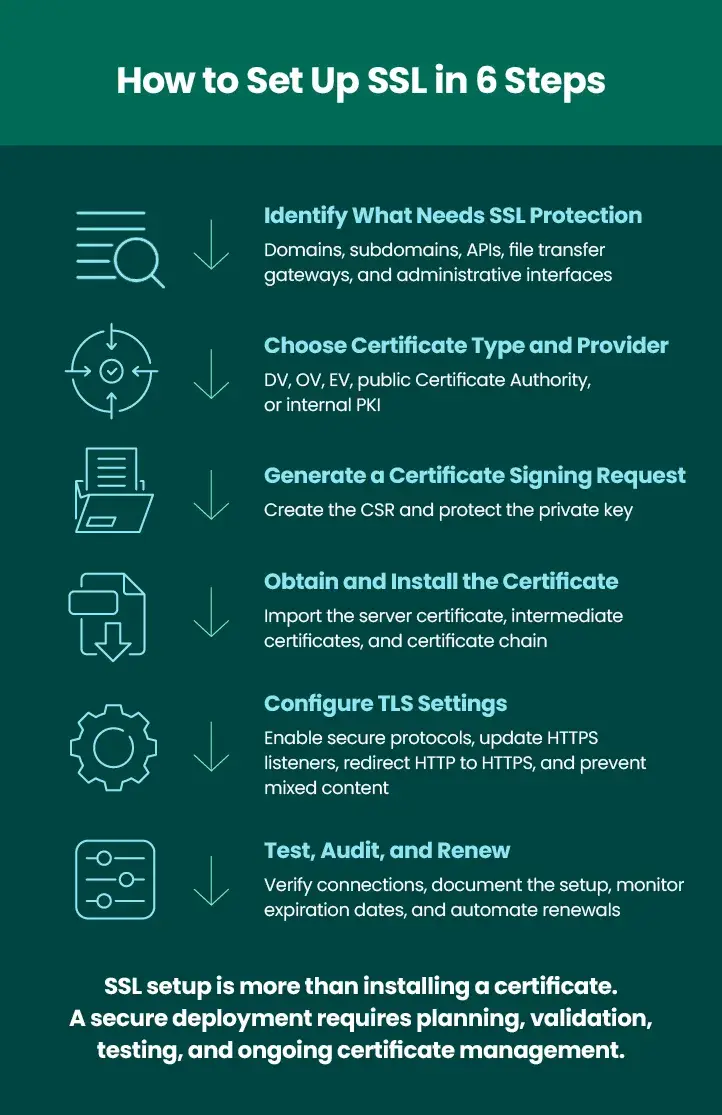
Learning how to set up SSL involves more than simply installing a certificate. A secure implementation includes careful planning, selecting the right certificate type, generating and protecting private keys, configuring strong TLS settings, validating the complete certificate chain, testing every connection, and automating renewals.
Whether you’re securing a public website, APIs, or a managed file transfer platform like GoAnywhere MFT, following these instructions helps ensure encrypted, authenticated, and reliable communications. Regular testing, documentation, and certificate lifecycle management will keep your SSL deployment secure and compliant long after the initial installation.
GoAnywhere MFT helps organizations automatically and securely exchange data with trading partners, employees, and between systems. We can help you confidently transfer sensitive data, meet compliance requirements, automate to help reduce human error risks, and add efficiency to all processes.